

Show Menu












Headquarters - Springdale
4055 W. Sunset
Springdale, AR 72762
479-717-1900
P. O. Box 6490
Springdale, AR 72766
Monday thru Friday 8:00am - 5:00pm
Monday thru Friday: 7:30am - 6:00pm
Saturday: 9:00am - 12:00pm
Monday thru Friday: 7:00am - 7:00pm
Saturday: 9:00am - 12:00pm
East Springdale
2081 Butterfield Coach Rd.
Springdale, AR 72764
479-717-1992
P. O. Box 6490
Springdale, AR 72766
Monday thru Friday 8:00am - 5:00pm
Monday thru Friday 8:00am - 5:00pm
Monday thru Friday 7:00am - 7:00pm
Saturday 9:00am - 12:00pm
South Springdale
3607 S. Thompson
Springdale, AR 72764
479-717-1991
P. O. Box 6490
Springdale, AR 72766
Monday thru Friday 8:00am - 5:00pm
Monday thru Friday 8:00am - 5:00pm
Monday thru Friday 7:00am - 7:00pm
Saturday 9:00am - 12:00pm
Pinnacle
4901 W. Pauline Whitaker Parkway
Rogers, AR 72758
479-286-2100
P. O. Box 6490
Springdale, AR 72766
Monday thru Friday: 8:00am - 5:00pm
Monday thru Friday: 8:00am - 5:00pm
Saturday: 9:00am - 12:00pm
Monday thru Friday 7:00am - 7:00pm
Saturday 9:00am - 12:00pm
Fayetteville
1325 E. Joyce Blvd
Fayetteville, AR 72703
479-717-1990
P. O. Box 6490
Springdale, AR 72766
Monday thru Friday: 8:00am - 5:00pm
Monday thru Friday: 8:00am - 5:00pm
Monday thru Friday 7:00am - 7:00pm
Saturday 9:00am - 12:00pm
Bentonville
2904 South Walton Blvd. Bentonville, AR 72712
479-876-8293
P. O. Box 6490
Springdale, AR 72766
Monday thru Friday: 8:00am - 5:00pm
Monday thru Friday: 8:00am - 5:00pm
Monday thru Friday 7:00am - 7:00pm
Saturday 9:00am - 12:00pm
Gravette
211 Main St SE Gravette, AR 72736
479-787-5251
PO Box 6490 Springdale, AR 72766
Monday thru Friday: 8:00am - 5:00pm
Monday thru Friday:
8:00am - 5:00pm
Saturday: 9:00am - 12:00pm
Monday thru Friday: 7:00am - 7:00pm
Saturday: 9:00am - 12:00pm
Hiwasse
13540 W Hwy 72 Hiwasse, AR 72739
479-787-7779
PO Box 6490 Springdale, AR 72766
Monday thru Friday: 8:00am - 5:00pm
Monday thru Friday: 8:00am - 5:00pm
Monday thru Friday: 7:00am - 7:00pm
Saturday: 9:00am - 12:00pm
Lincoln
205 W. Pridemore Drive
Lincoln, AR 72744
479-439-4246
P. O. Box 6490
Springdale, AR 72766
Monday thru Friday 8:00am - 5:00pm
Monday thru Friday 8:00am - 5:00pm
Monday thru Friday 7:00am - 7:00pm
Saturday 9:00am - 12:00pm
Downtown Bentonville
107 NW 2nd Street,
Bentonville, AR 72712
479-334-2068
P. O. Box 6490
Springdale, AR 72766
Monday thru Friday 8am-5pm
Monday thru Friday 7am-7pm

Before starting the login process, read the bullet points below:
Login Instructions for Desktop
1. Go to www.legacyar.com

2. Click on: LegacyNOW Login Here
3. Enter your existing Login ID and Password.
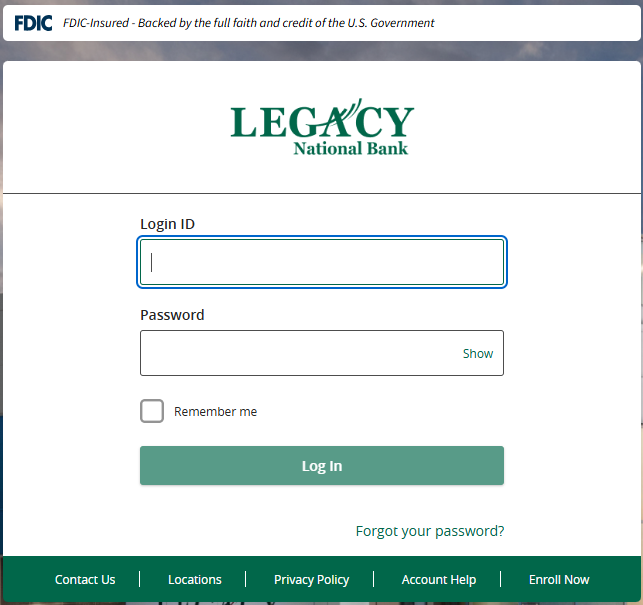
4. You will be required to complete a multifactor authentication process on either your 1st login, when using a new device, using a new browser or clearing your cache and cookies.
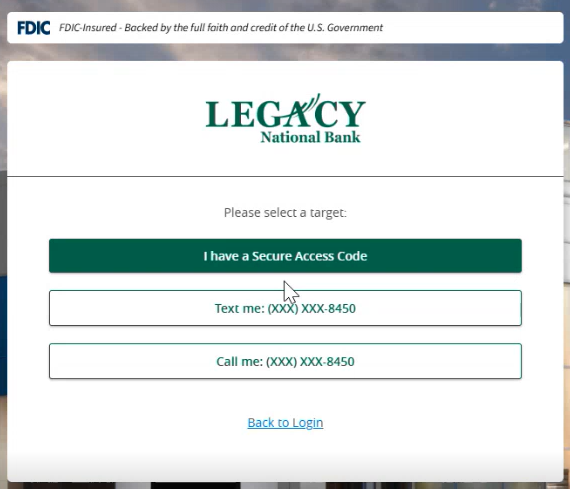
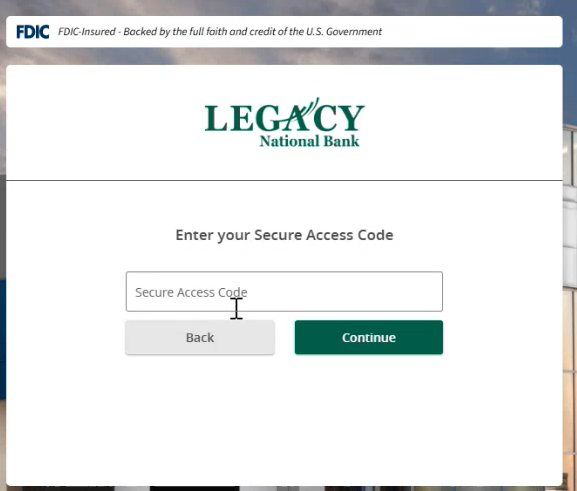
5. Once you select an option, the below screen will pop up. Enter your SAC code below and click “Continue”.
6. After clicking “Continue” you will have two options: “Continue in Mobile App” or “Register Passkey”.
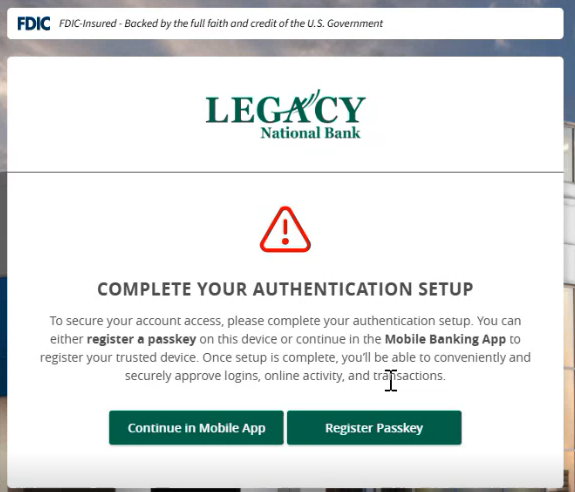
7. Click “Register Passkey” in order to continue the login process on a desktop computer. The below screen will pop up. You will be required to name your device. In this example the device was named: Sarah Laptop.
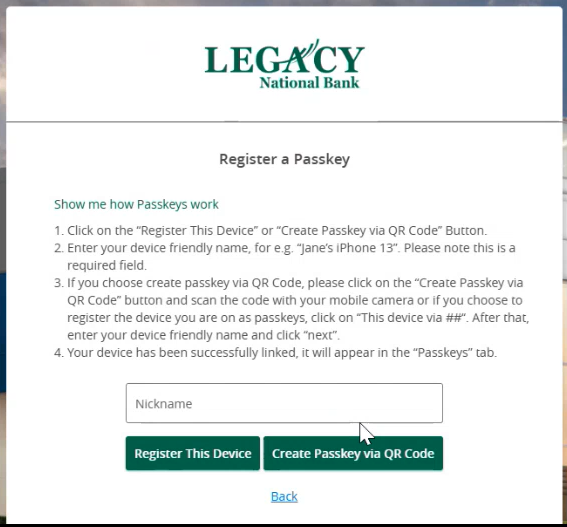
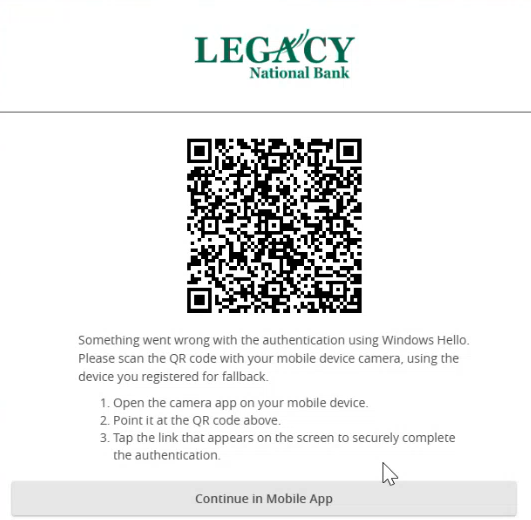
7a. After clicking on the “Create Passkey via QR Code” button, a box with a QR code will appear.
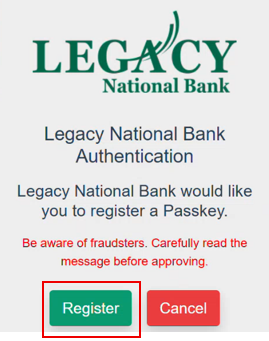
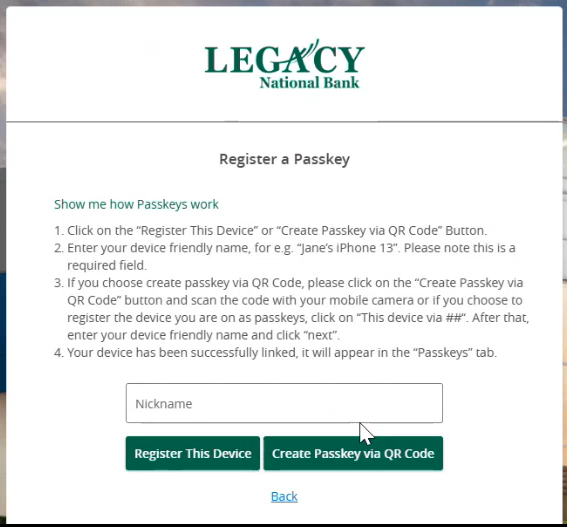
7b. After typing in the name of the device, you will need to select either “Register This Device” or “Create Passkey via QR Code”.
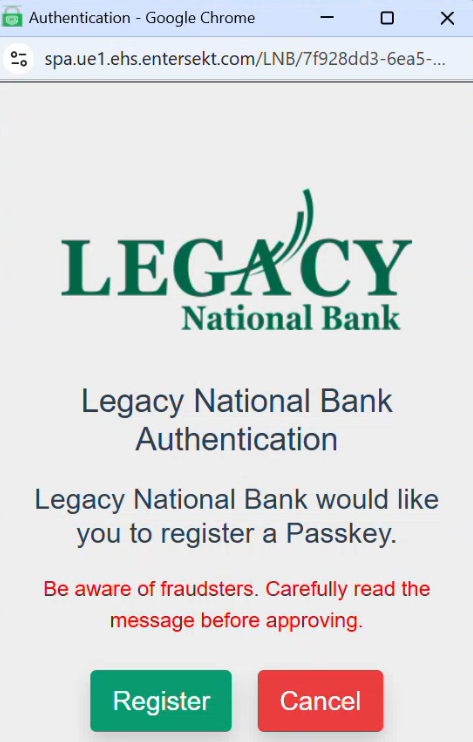
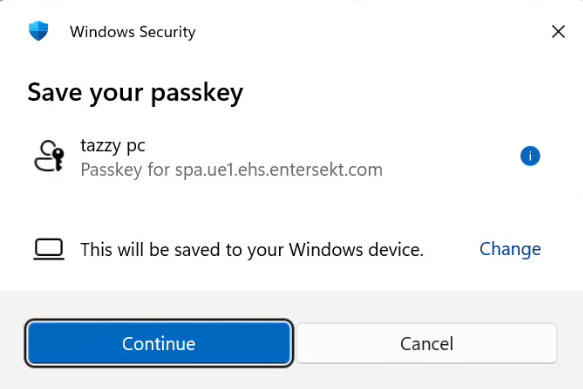
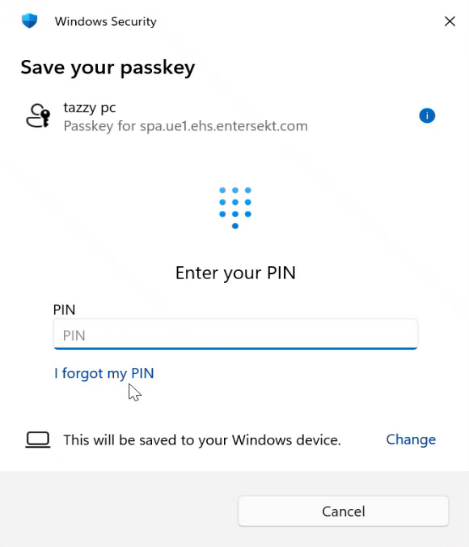
After clicking “Register” there are a few different passkey options that could pop up depending on your computer configuration. The below example prompts you to “Save your passkey”. This box will represent the name you gave your computer (in this example: Sarah Laptop).
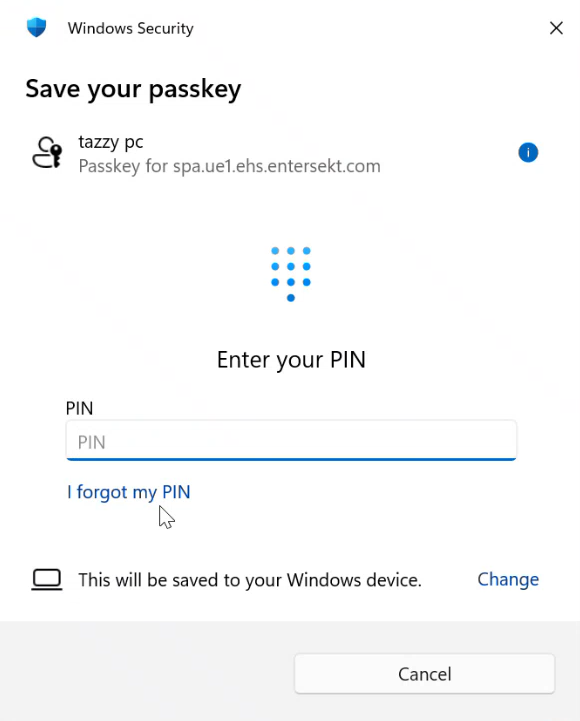
If you already have a passkey for your computer, enter it in the “PIN” text box. This could be a pin or it could be a password you use to log into your computer on a daily basis.
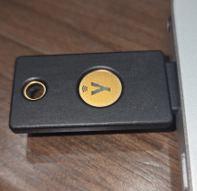
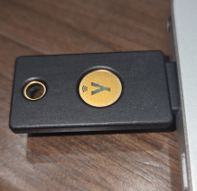
OR, if you have a token/dongle from Legacy Bank, insert it into your USB drive and touch the gold sensor.
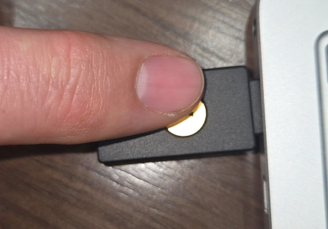
OR, your passkey may be automated and you may not have to complete this step.
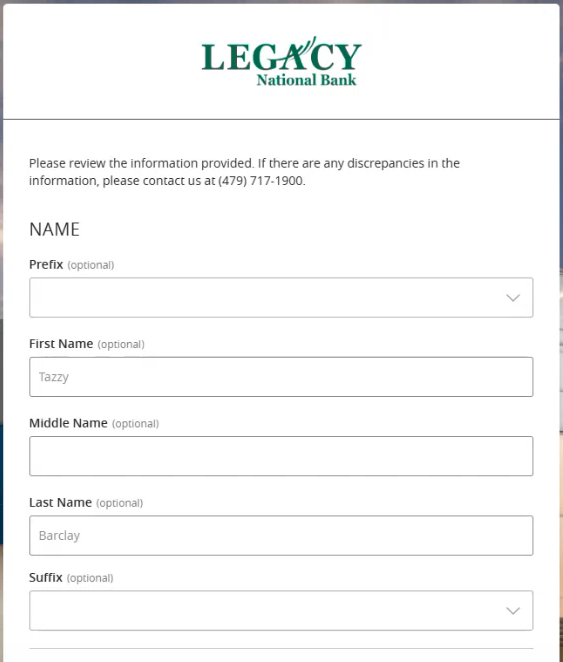
8. After completing the “Register a Passkey” step, some customers may have the below profile screen pop up. If it does, review the information listed for accuracy, scroll to the bottom and click “Submit Profile”. You will not be able to fill in or edit any of the information. If there is a piece of inaccurate information, please contact the bank to get it updated.
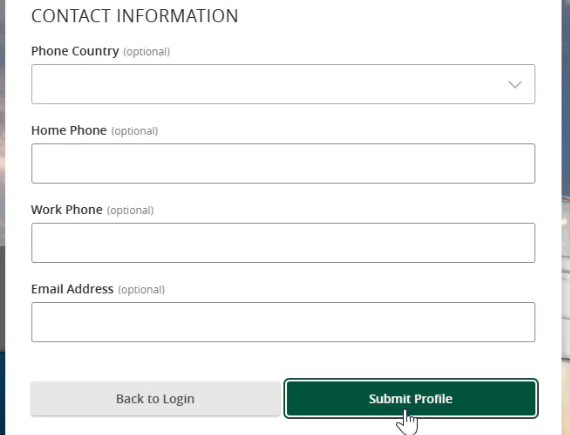
9. After clicking “Submit Profile”, you will be requested to enter your existing password as well as a new password. Keep this new password handy as you will need it a few more times during this process.
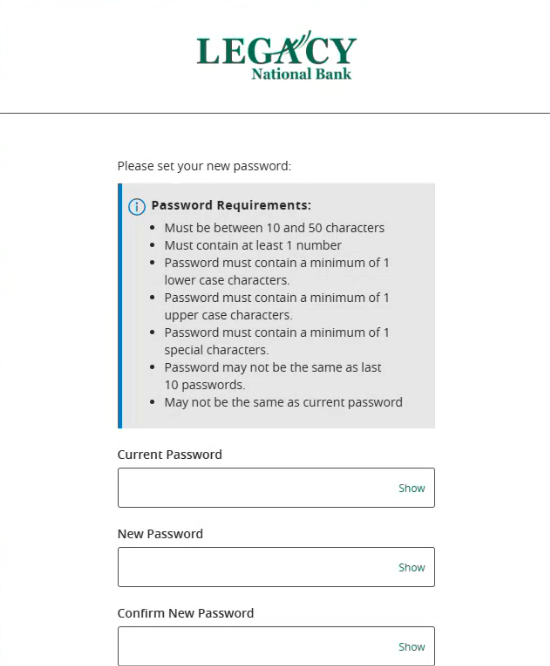
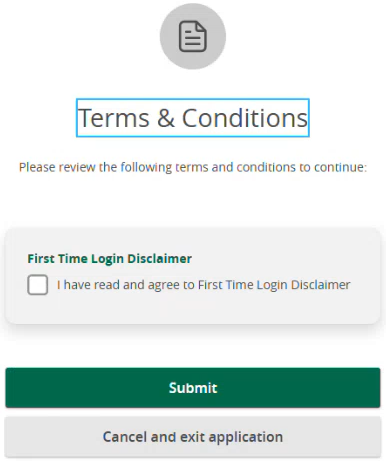
10. Once you successfully set your new password, a “Terms & Conditions” screen will pop up.
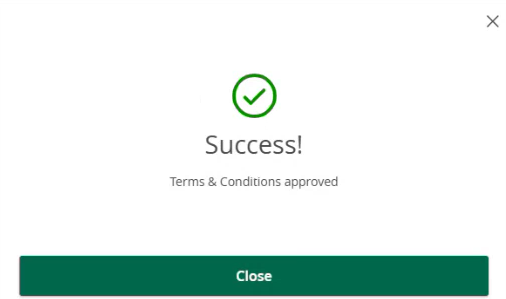
Congratulations! You have just completed your first of 3 logins! Let’s proceed with logging in a second time.
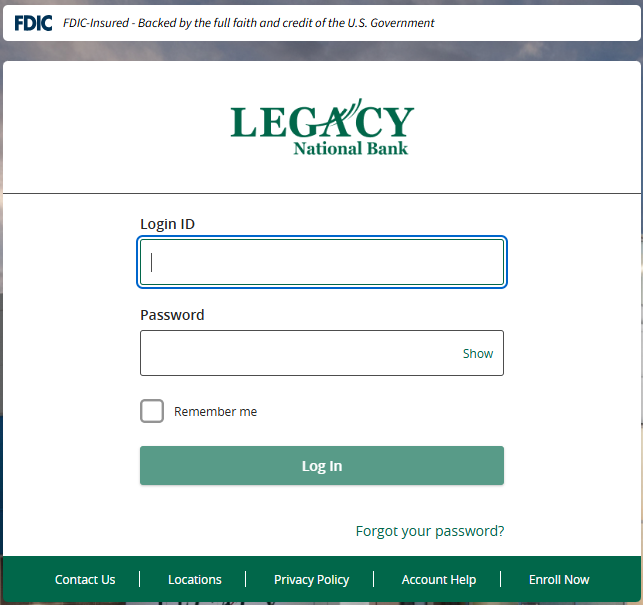
11. Log off and navigate back to the login screen. Enter your Login ID and Password.
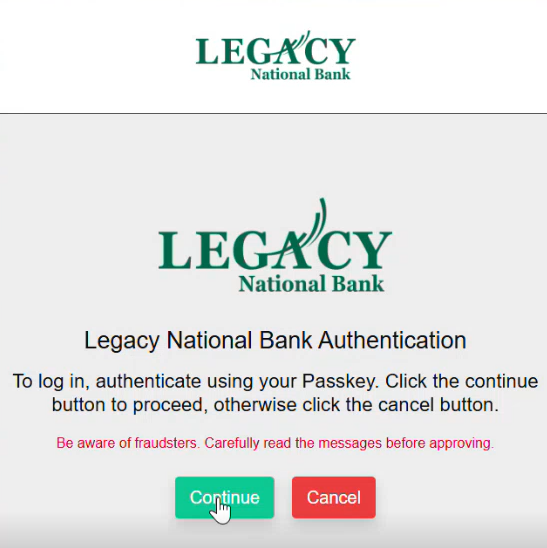
12. Your computer is now recognized and you will not have to register a passkey. Click “Continue”.
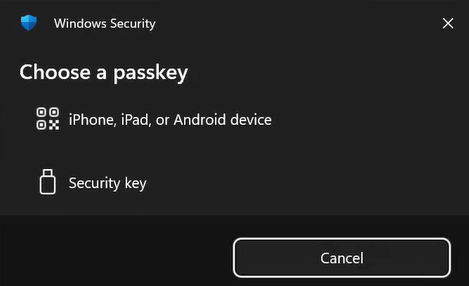
13. You will need to complete the passkey process, whether that be entering a pin, using a token/dongle, your mobile phone, or an automated process that was completed when you logged into your computer. Below are 3 pictures outlining different passkey screens/processes you might see.
14. After completing the passkey process, the next screen will ask you if you want to trust this browser.
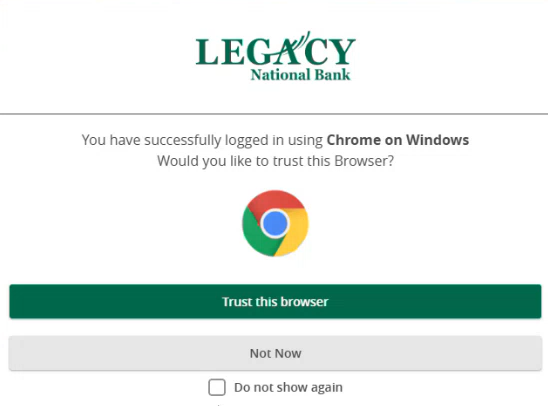
In this example, we are going to click “Trust this browser”.
Congratulations! You have just completed your second login. Only one more log in to create a streamlined process going forward.
15. Log off and navigate back to the login screen. Enter your Login ID and Password.
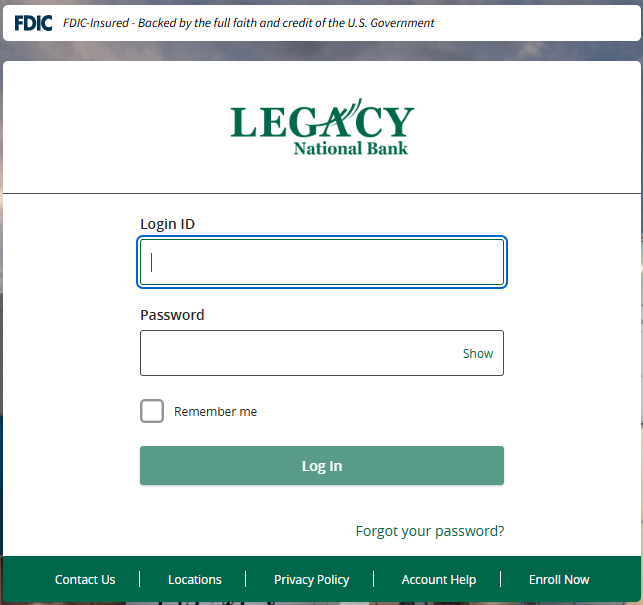
Congratulations! You have now completed your 3rd login. Because you have registered the device and trusted the browser, you no longer have to go through the passkey or multifactor authentications steps.
Are you a new or existing customer?
Now Leaving Legacy Bank.
You are about to visit a third-party site not operated by Legacy Bank, a FDIC-insured institution.
Legacy Bank’s privacy policy and security practices do not apply to the site you are about to enter, please review the third-party's privacy and security practices.