

Show Menu




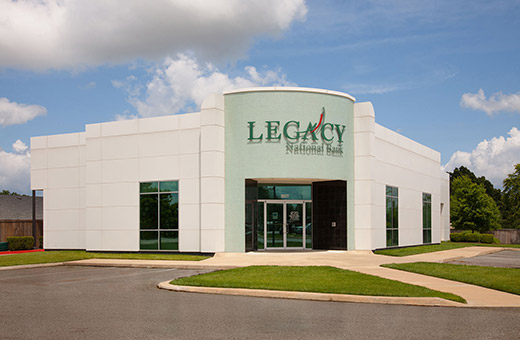

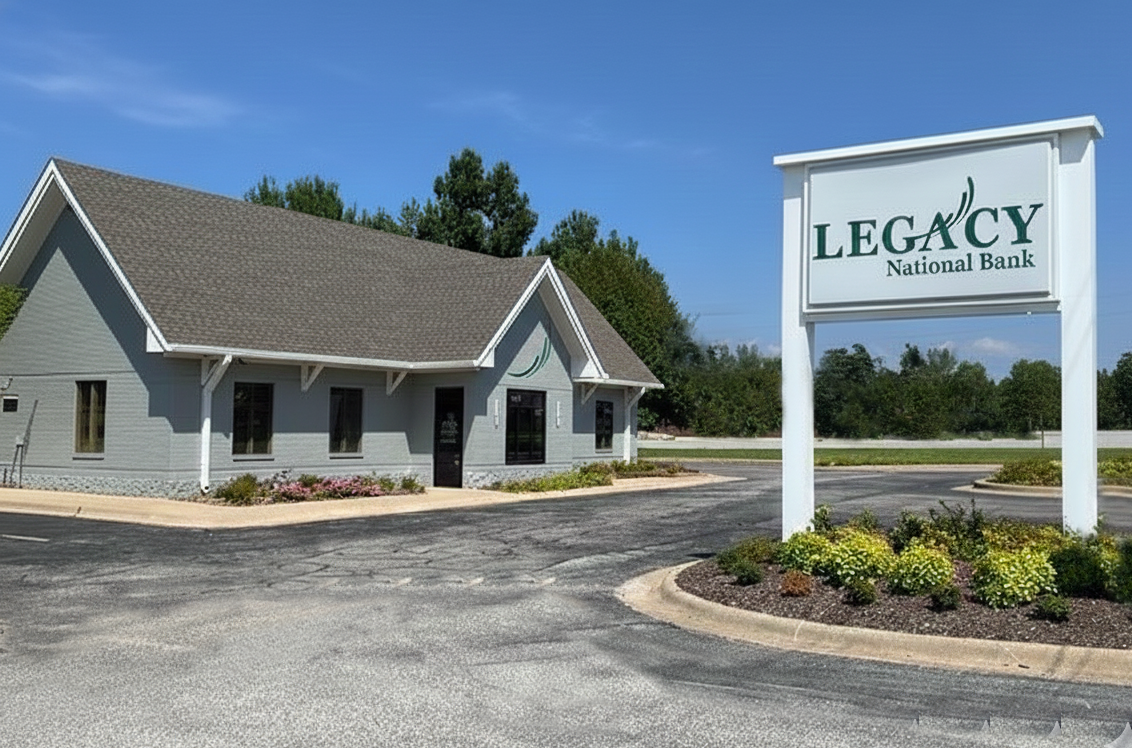
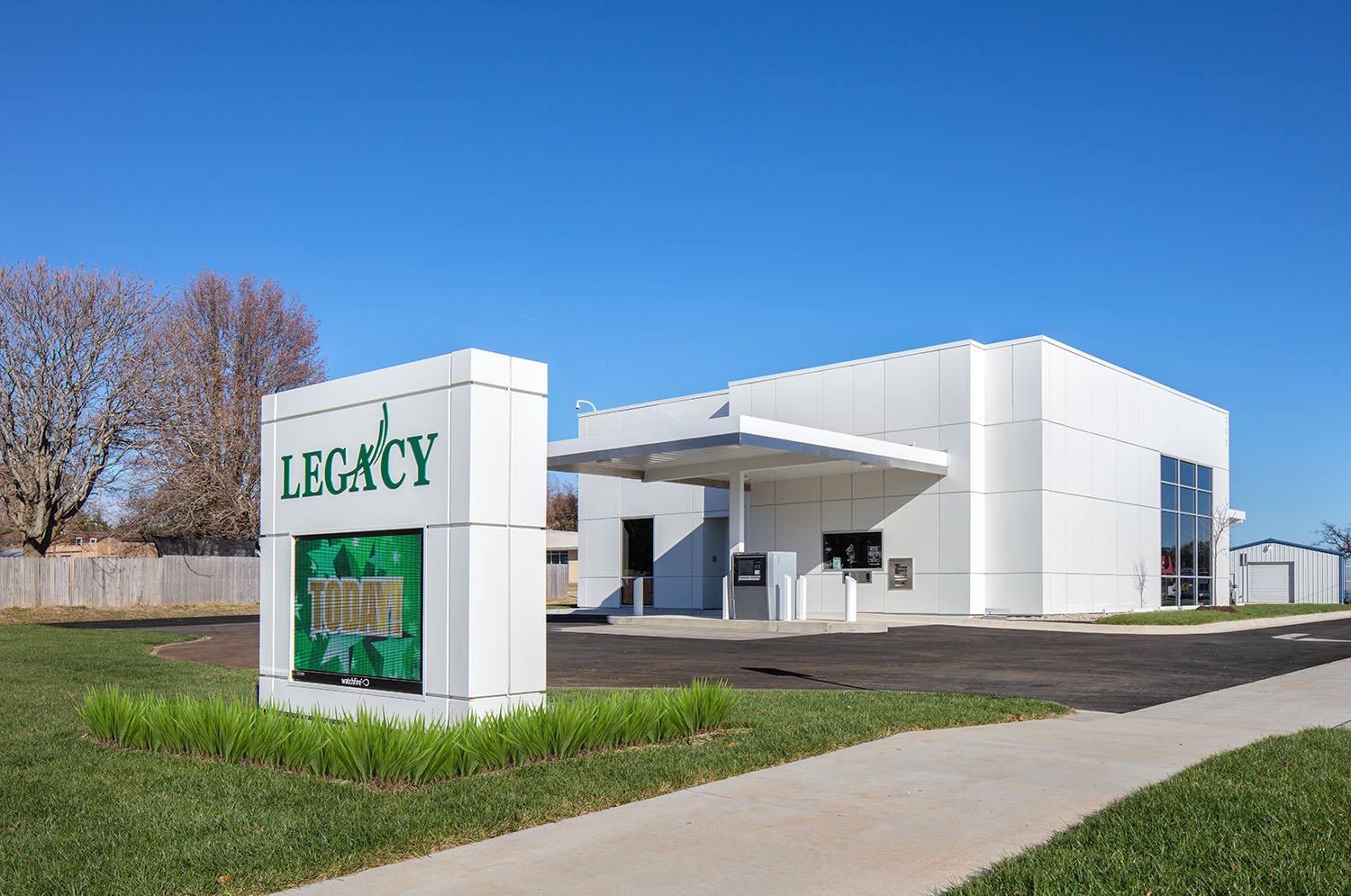
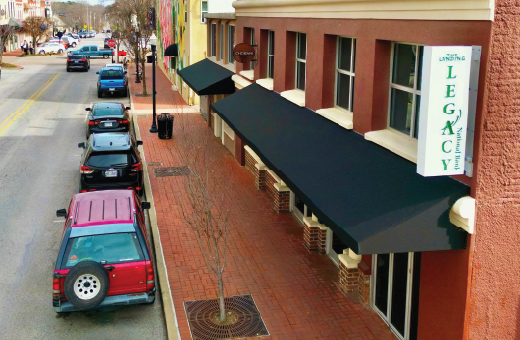
Headquarters - Springdale
4055 W. Sunset
Springdale, AR 72762
479-717-1900
P. O. Box 6490
Springdale, AR 72766
Monday thru Friday 8:00am - 5:00pm
Monday thru Friday: 7:30am - 6:00pm
Saturday: 9:00am - 12:00pm
Monday thru Friday: 7:00am - 7:00pm
Saturday: 9:00am - 12:00pm
East Springdale
2081 Butterfield Coach Rd.
Springdale, AR 72764
479-717-1992
P. O. Box 6490
Springdale, AR 72766
Monday thru Friday 8:00am - 5:00pm
Monday thru Friday 8:00am - 5:00pm
Monday thru Friday 7:00am - 7:00pm
Saturday 9:00am - 12:00pm
South Springdale
3607 S. Thompson
Springdale, AR 72764
479-717-1991
P. O. Box 6490
Springdale, AR 72766
Monday thru Friday 8:00am - 5:00pm
Monday thru Friday 8:00am - 5:00pm
Monday thru Friday 7:00am - 7:00pm
Saturday 9:00am - 12:00pm
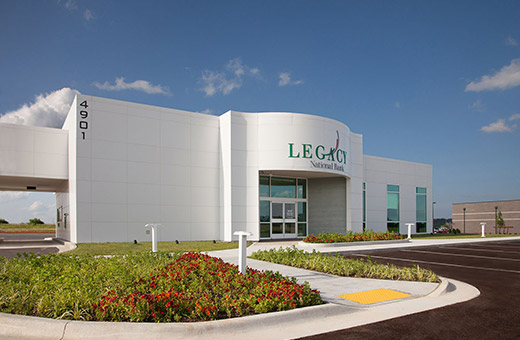
Pinnacle
4901 W. Pauline Whitaker Parkway
Rogers, AR 72758
479-286-2100
P. O. Box 6490
Springdale, AR 72766
Monday thru Friday: 8:00am - 5:00pm
Monday thru Friday: 8:00am - 5:00pm
Saturday: 9:00am - 12:00pm
Monday thru Friday 7:00am - 7:00pm
Saturday 9:00am - 12:00pm
Fayetteville
1325 E. Joyce Blvd
Fayetteville, AR 72703
479-717-1990
P. O. Box 6490
Springdale, AR 72766
Monday thru Friday: 8:00am - 5:00pm
Monday thru Friday: 8:00am - 5:00pm
Monday thru Friday 7:00am - 7:00pm
Saturday 9:00am - 12:00pm
Bentonville
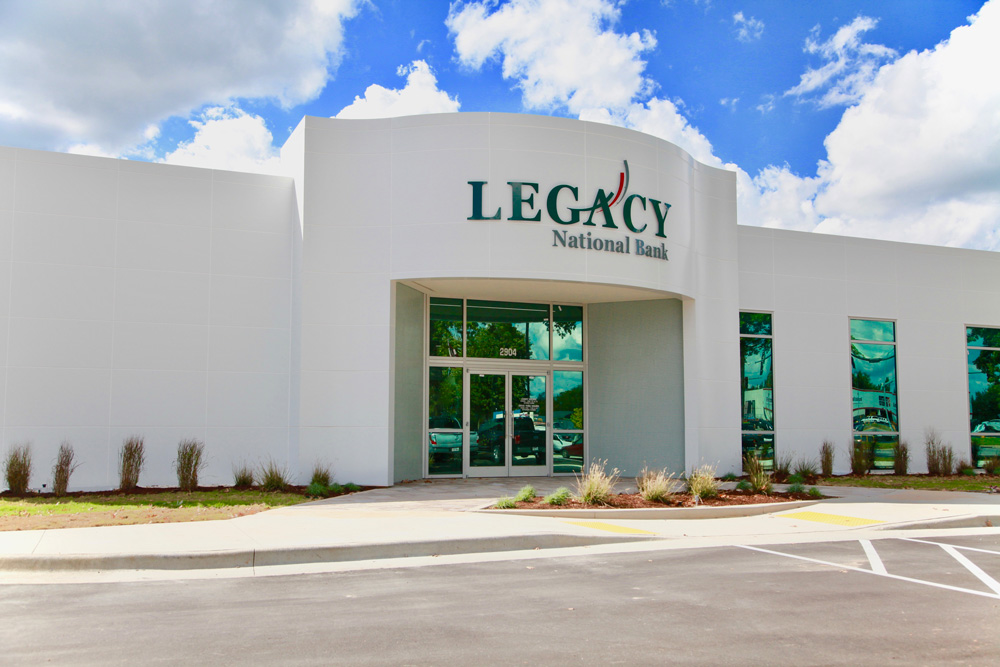
2904 South Walton Blvd. Bentonville, AR 72712
479-876-8293
P. O. Box 6490
Springdale, AR 72766
Monday thru Friday: 8:00am - 5:00pm
Monday thru Friday: 8:00am - 5:00pm
Monday thru Friday 7:00am - 7:00pm
Saturday 9:00am - 12:00pm
Gravette
211 Main St SE Gravette, AR 72736
479-787-5251
PO Box 6490 Springdale, AR 72766
Monday thru Friday: 8:00am - 5:00pm
Monday thru Friday:
8:00am - 5:00pm
Saturday: 9:00am - 12:00pm
Monday thru Friday: 7:00am - 7:00pm
Saturday: 9:00am - 12:00pm
Hiwasse
13540 W Hwy 72 Hiwasse, AR 72739
479-787-7779
PO Box 6490 Springdale, AR 72766
Monday thru Friday: 8:00am - 5:00pm
Monday thru Friday: 8:00am - 5:00pm
Monday thru Friday: 7:00am - 7:00pm
Saturday: 9:00am - 12:00pm
Lincoln
205 W. Pridemore Drive
Lincoln, AR 72744
479-439-4246
P. O. Box 6490
Springdale, AR 72766
Monday thru Friday 8:00am - 5:00pm
Monday thru Friday 8:00am - 5:00pm
Monday thru Friday 7:00am - 7:00pm
Saturday 9:00am - 12:00pm
Downtown Bentonville
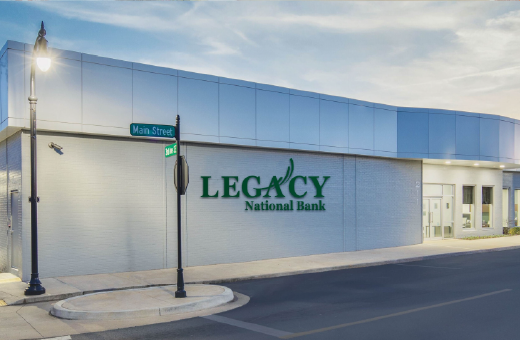
107 NW 2nd Street,
Bentonville, AR 72712
479-334-2068
P. O. Box 6490
Springdale, AR 72766
Monday thru Friday 8am-5pm
Monday thru Friday 7am-7pm

Click here or scroll down for QuickBooks Desktop Conversion Instructions.
As your financial institution completes its system conversion, you will need to modify your QuickBooks Online settings to ensure that your data connectivity transfers smoothly to the new system. This document contains instructions for both connectivity types (Express Web Connect and Web Connect).
IMPORTANT: Express Web Connect will not be available until 5 business days after the Action Date, so please utilize another connectivity type if you need transaction updates during this downtime.
To navigate this document, use the links below that match your product connectivity:
Action Date: February 23, 2026
Disconnect online banking connection for accounts connected to the financial institution that is requesting this change.
Action Date: February 23, 2026
Converted from PDF. Use navigation below:
Action Date: February 23, 2026
Action Date: February 23, 2026
Action Date: February 23, 2026
Action Date: February 23, 2026
Action Date: February 23, 2026
Only complete if initiating Bill Pay inside QuickBooks.
Are you a new or existing customer?
Now Leaving Legacy Bank.
You are about to visit a third-party site not operated by Legacy Bank, a FDIC-insured institution.
Legacy Bank’s privacy policy and security practices do not apply to the site you are about to enter, please review the third-party's privacy and security practices.